
Ticket data coding can be managed in two ways: in-app via the UI for quick adjustments, or using an Excel file for bulk coding. Both methods are accessible from the Event Table.
👁️🗨️Identifying Events with uncoded values
When navigating through the Event table, you will see red flags 🚩next to some Event titles. This indicates uncoded ticket data for the event.
To remove these flags, please ensure that the Transaction Type and Ticket Price Type fields have been coded or confirmed.
🔶Using the UI interface
To code in the app, select the event and click 'Code tickets for X events' at the bottom of the page. A pop-up window will appear for data coding.
At the top of the window, you'll see a ticket graphic containing values from your raw data.
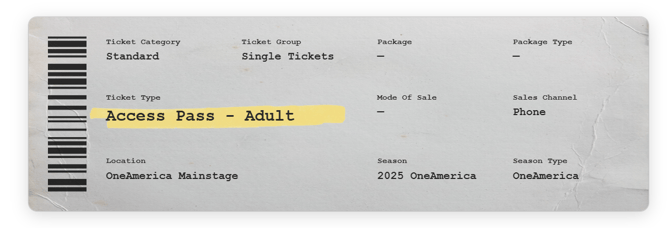
This displays the ticket group you are currently coding.
Below the ticket, you will be able to see the number of tickets contained with the group and their value.
At the bottom of the window are drop down boxes containing the currently coded values. You can click on these and select from the available options to change them.
Once you’ve updated a ticket group, click Queue Changes to save your edits for that group. Use the Next and Previous buttons to move between groups. When all edits are complete, click Submit Changes to apply them.
🔶Using the Excel File
For bulk coding, you can generate a downloadable Excel coding file. This is especially useful for events with large volumes of ticket groups or for coding entire seasons at once.
Select events from the Events table or Season view, then click Download Ticket Coding File. A pre-populated spreadsheet will be generated, which you can edit offline and re-upload via the Manage Data Coding portal.